Connect Your Domain to Kajabi: Issues & Fixes

In this guide, you’ll learn how to connect your domain to Kajabi, the most common problems users face during Kajabi domain connection, and the exact solutions to fix them without breaking your email or website. Checkout our article on how to setup high converting kajabi website
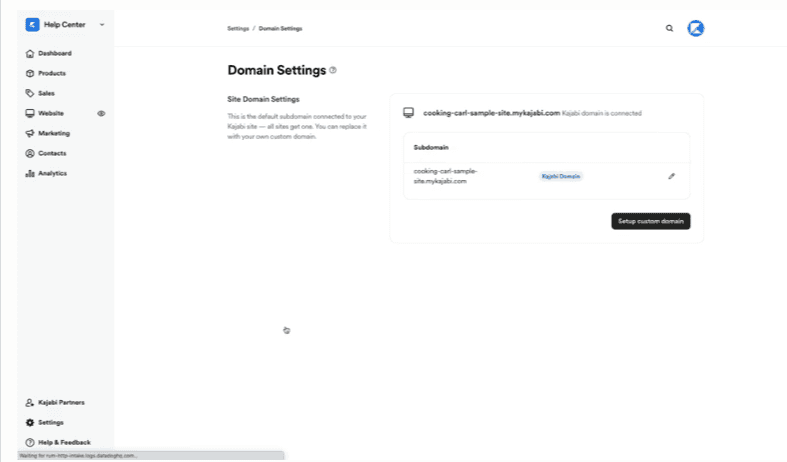
How Kajabi Domain Connection Works
When you connect a domain from GoDaddy to Kajabi, Kajabi may provide its own nameservers during the setup process.
Once those nameservers are added in GoDaddy:
The domain becomes managed by Kajabi
DNS changes are handled inside Kajabi
This is where most confusion begins—especially around email (MX records).
Step-by-Step: Connecting Your GoDaddy Domain to Kajabi
Step 1: Start Domain Connection in Kajabi
Go to: Kajabi Dashboard → Settings → Domains → Connect Existing Domain
Enter your domain name
Kajabi will generate custom nameservers
These nameservers must be added in GoDaddy.
Step 2: Update Nameservers in GoDaddy
Login to GoDaddy and follow:
My Products → Domains → Manage DNS → Nameservers
Replace existing nameservers with the ones provided by Kajabi
Save changes
Once this is done:
DNS is now controlled by Kajabi
Domain propagation usually starts immediately
Propagation can take 15 minutes to 48 hours.
What Happens to Email (MX Records)?
In most cases, Kajabi automatically propagates existing MX records during domain connection.
This means:
Your GoDaddy mailbox should continue working
Incoming emails should still be received
However, this does not always happen.
Common Issue #1: Emails Stop Receiving After Domain Connection
Why This Happens
Sometimes, when the domain is connected:
MX records are not automatically propagated
Or they are partially missing
If you are using a GoDaddy mailbox, this will cause incoming emails to stop.
Solution: Add MX Records Manually in Kajabi
If Kajabi is managing your DNS, you must add MX records inside Kajabi.
Go to: Kajabi → Settings → Domains → Your Connected Domain
Then:
Click Add Custom Records
Add the following MX records
MX @ mailstore1.secureserver.net Priority: 0
MX @ smtp.secureserver.net Priority: 10
Save the records and allow time for propagation.
Domain Disconnects After Connecting to Kajabi
Why This Happens
This can occur due to:
Incomplete DNS propagation
Temporary verification issues
Conflicts during nameserver switching
The domain may show as connected initially, then disconnect later.
Solution: Contact Kajabi Support
Kajabi support is generally fast and efficient.
If your domain keeps disconnecting:
Contact Kajabi Support
Share your domain name
Explain that the domain was connected via nameservers
They can:
Manually re-verify the domain
Force SSL provisioning
Resolve internal connection conflicts
Common Issue #3: Website Works but SSL Shows Error
Cause
SSL provisioning may still be in progress or stuck due to DNS changes.
Solution
Wait up to 24 hours
Ensure domain shows as connected
Kajabi handles SSL automatically once DNS is stable
If it persists, Kajabi support can reset SSL.
Best Practices When Connecting Domain to Kajabi
Confirm whether you are using email services on GoDaddy before connecting
Keep a record of existing DNS settings
Allow full propagation time before testing
Test website and email separately
Avoid repeated DNS changes within a short time
Other resources
Resources to help you build with confidence.




Tell us what you are trying to ship
Share the product, workflow, or platform problem. We will tell you the likely engagement path, the major technical constraints, and the most sensible next step.